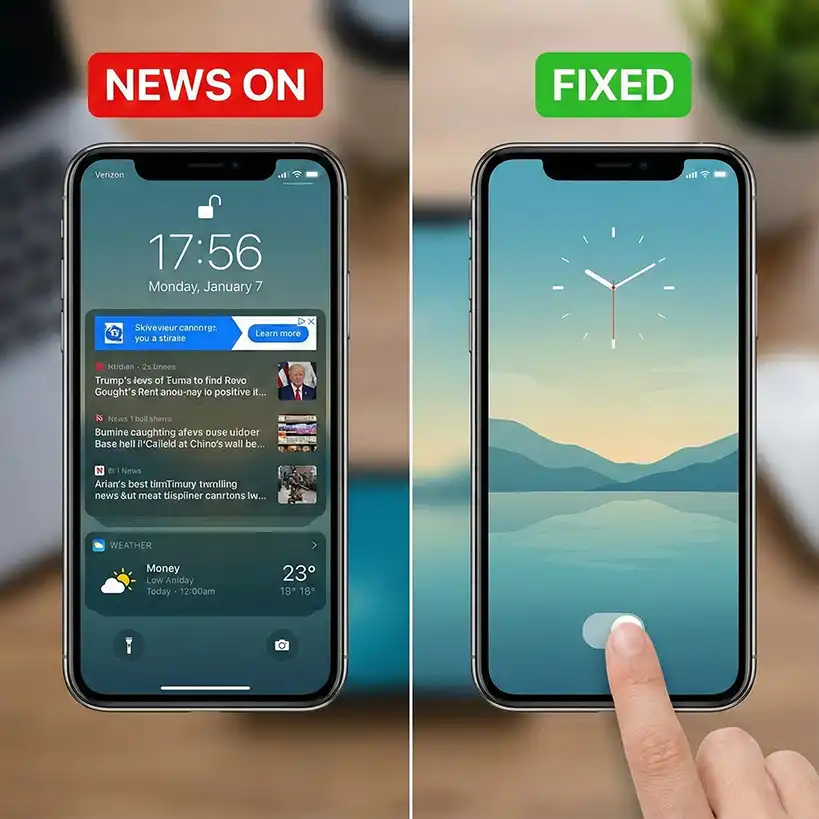
You pick up your smartphone to check the time, but instead of your carefully chosen wallpaper, you are greeted by a random headline about celebrity gossip, a cricket match score, or a political debate. It is distracting, it drains your battery, and quite frankly, it is annoying. You are likely asking yourself, “Why does my phone shows news on lock screen without my permission?”
In the modern smartphone ecosystem, manufacturers are constantly looking for ways to monetize your attention. The lock screen—the digital real estate you look at dozens of times a day—has become a prime target for content delivery.
Whether you are using a Samsung, Xiaomi, Realme, or even an iPhone, this guide will explain exactly why your phone shows news on lock screen and, more importantly, give you the step-by-step solutions to reclaim your device.
The “Why”: The Hidden Business of Lock Screen Content
Before we dive into the buttons you need to press, it is helpful to understand the root cause. Why is this happening?
When your phone shows news on lock screen, it is rarely a virus or a bug. It is usually a feature. Smartphone manufacturers partner with content aggregators (the most famous being “Glance”) to serve you content.
1. Wallpaper Services & “Glance”
On Android devices, particularly Asian brands like Xiaomi, Samsung (Budget M/A series), Realme, and Vivo, the culprit is often a pre-installed service called a “Wallpaper Carousel” or “Glance.”
- The Incentive: These companies make ad revenue by showing you sponsored articles and trending news.
- The Mechanism: Every time you wake your phone, the service fetches a new image and headline using your mobile data.
2. Notification Overload
Sometimes, the issue isn’t a wallpaper service but a specific app. Google News, Flipboard, or browser push notifications can stack up on your lock screen, making it look like a news feed.
3. The “Smart” Assistant
Features like “Google Assistant Snapshot” or iOS “Siri Suggestions” try to be helpful by predicting what you want to see. Often, they predict wrong, and your phone shows news on lock screen that you never asked for.
Method 1: The Samsung Fix (Disabling Wallpaper Services)
Samsung phones are fantastic, but they are notorious for this issue. If you have a Samsung Galaxy device, the feature is likely hidden under “Wallpaper Services.”
Why Samsung Does It
Samsung partners with “Glance” or uses its own “Samsung Global Goals” on the lock screen to display dynamic images. While the images are high quality, the text overlays are intrusive.
Step-by-Step Solution
- Unlock your phone and go to Settings (the gear icon).
- Scroll down and tap on Wallpaper and style.
- Look for an option that says Browse my wallpapers or significantly, Wallpaper services.
- Tap on Wallpaper services.
- You will likely see “Glance on Samsung” or “Dynamic Lock Screen” selected.
- Select None.
- (Optional) If there is a toggle for “Swipe left for info page,” turn that OFF as well.
Once you select “None,” your phone shows news on lock screen no more. You will revert to your static, peaceful image.
Method 2: The Xiaomi / Redmi / POCO Fix (Turning Off Glance)
If you own a Xiaomi (Mi), Redmi, or POCO device, the “Glance” integration is deeply baked into the OS (MIUI or HyperOS). This is one of the most aggressive forms of lock screen content.
The “Glance” Ecosystem
On these devices, swiping right on the lock screen often opens a full news page. This can lead to accidental touches and significant data usage.
Step-by-Step Solution
- Open Settings.
- Navigate to Lock Screen (sometimes grouped with “Always-on display & Lock Screen”).
- Look for the setting labeled Glance for Mi or Wallpaper Carousel.
- Tap on it and toggle the switch to Turn Off.
- Note: The phone might ask you to share feedback on why you are turning it off. You can skip this or select “Too many ads.”
Pro Tip for Xiaomi Users: If the option is greyed out or you can’t find it, try changing your region. Sometimes Glance is region-specific. Go to Settings > Additional Settings > Region and switch to a region where Glance is less aggressive (like the UK or US), although this might affect other theme store items.
Method 3: The Stock Android & Pixel Fix (Google News & Assistant)
If you have a Google Pixel, Motorola, or a phone running near-stock Android (like Nothing Phone), the reason your phone shows news on lock screen is likely different. It is usually tied to Google News notifications or the “At a Glance” widget.
Disabling “At a Glance” Weather/News
Pixel phones have a permanent widget at the top of the home/lock screen.
- Long press on the empty space of your home screen.
- Tap Home Settings.
- Tap on At a Glance.
- Here you can toggle off specific alerts. While you cannot remove the date/weather easily without a custom launcher, you can turn off “News,” “Earthquake alerts,” or “Package delivery” updates that clutter the screen.
Stopping News Notifications
If the news appears as rectangular banners:
- Go to Settings > Apps > Google News (or the browser app sending them, like Chrome).
- Tap Notifications.
- Scroll down to News or Daily Briefing.
- Toggle this switch OFF.
- Alternatively, set the notification type to “Silent” so it doesn’t wake your screen.
Method 4: The iPhone (iOS) Fix
Apple usually respects user privacy more, but the introduction of Lock Screen Widgets and Live Activities in iOS 16 and 17 has changed things. If your iPhone lock screen looks like a newspaper, it is because of widgets or the “Today View.”
Removing Lock Screen Widgets
- Long press on your Lock Screen (you need to unlock it with FaceID first).
- Tap Customize.
- Select the Lock Screen (the left image).
- Tap on the widget area (the box under the clock).
- Tap the (-) minus icon on the News widget to remove it.
- Tap Done.
Disabling “Today View” (Swipe Left News)
Even without widgets, if you swipe right on an iPhone lock screen, you see the “Today View” which often contains a massive News Search bar and headlines.
- Go to Settings > Face ID & Passcode (enter your passcode).
- Scroll down to the section Allow Access When Locked.
- Toggle OFF the switch for Today View and Search.
- Toggle OFF the switch for Lock Screen Widgets if you want a totally clean look.
Now, even if you accidentally swipe, your phone shows news on lock screen no longer.
Method 5: The “Hard” Fix (Uninstalling Bloatware)
Sometimes, disabling the setting isn’t enough because the software update turns it back on. This is common in budget Realme, Tecno, and Infinix phones. To ensure your phone shows news on lock screen never again, you might need to uninstall or disable the package entirely.
Using ADB (Advanced)
Note: This requires a PC.
- Enable Developer Options on your phone (Tap Build Number 7 times).
- Enable USB Debugging.
- Connect phone to PC.
- Use a tool like “Universal Android Debloater” or type the ADB command to remove the specific package (e.g.,
com.glance.internet). (Only attempt this if you are comfortable with tech DIY).
Why You Should Disable Lock Screen News Immediately
You might be thinking, “Is it really that big of a deal if my phone shows news on lock screen?” Yes, and here is why.
1. Battery Drain
Every time your screen lights up to update a news headline or download a new high-resolution wallpaper, it uses the CPU and the modem. “Glance” services are notorious for running in the background, constantly pinging servers for new content. Disabling it can boost your battery life by 5-10%.
2. Data Consumption
These dynamic wallpapers don’t magically appear; they are downloaded. If you are on a limited data plan, this background usage eats away at your monthly allowance.
3. Mental Health and Focus
This is the most critical factor. The lock screen is meant to be a barrier—a gatekeeper. When your phone shows news on lock screen, it turns that barrier into a hook. You check the time, see a shocking headline (“You won’t believe what X celebrity did!”), and suddenly you are unlocking the phone to read it. 20 minutes later, you’ve forgotten why you picked up the phone in the first place.
Removing this friction allows you to use your phone with intention, rather than reacting to interruption.
Replacing News with Utility
Once you have removed the news, what should you put there? A blank screen is peaceful, but you can make it useful without being distracting.
- Weather Widget: A simple temperature check doesn’t invite scrolling.
- Calendar: Seeing your next meeting is productive, not addictive.
- Static Art: Use a high-quality OLED black wallpaper to save even more battery.
If you are interested in optimizing your device further, you might want to check out guides on battery health management which often recommend disabling dynamic wallpapers as step one.
Conclusion
Your smartphone is a tool, not a billboard. Manufacturers often forget this in their quest for additional ad revenue. When your phone shows news on lock screen, it is an invasion of your personal digital space.
By following the steps above—whether navigating the “Wallpaper Services” on Samsung or the “Glance” settings on Xiaomi—you can take back control. The result is a cleaner interface, better battery life, and a more peaceful relationship with your technology.
Don’t let an algorithm decide what you see first thing in the morning. Turn it off, and enjoy the silence.
For more detailed tech tutorials, visit I Let an AI Plan My Entire Week. Here’s What Went Wrong.